

Automation change management helps employees adjust when a business starts using new tools, software, or automated workflows. It focuses on people, not just technology.
Even the best automation tools may fail to deliver results if employees do not understand or use them.
A successful change needs clear communication, practical training, and ongoing support. This guide explains seven simple steps managers can follow to help their teams adopt automation with less confusion.
What Is Automation Change Management?
Automation change management is the process of helping employees prepare for, learn, and use new automated systems at work.
It helps businesses manage the human side of technology changes.
For example, a company might replace manual data entry with software that moves information between systems. The software may work well, but employees still need to understand the new process.
Change management helps answer three key questions:
- Why are we making this change?
- How will it affect my daily work?
- What support will I receive?
The main goal is not just to install automation. It is to help people use it correctly and confidently.
Why Is It Important?
Automation can reduce repeated tasks, improve consistency, and help teams spend more time on valuable work.
However, these benefits depend on how well the tools fit daily tasks and how employees use them.
Good change management can help businesses:
- Reduce confusion during the transition.
- Give employees the skills they need.
- Find workflow problems early.
- Build confidence in new technology.
- Track whether automation improves work.
This also matters during automated cloud transformation, when companies move their processes to connected cloud-based systems.
Why Do Employees Resist Automation?
Employees do not always resist automation because they dislike technology. Often, they have real concerns about how it will affect them.

Understanding these concerns is the first step toward solving them.
| Common concern | What employees may be thinking | What managers can do |
|---|---|---|
| Job security | Will automation replace my role? | Explain expected job changes honestly |
| Limited skills | What if I cannot use the tool? | Provide hands-on training |
| Unclear benefits | Why do we need this system? | Show how it helps with daily tasks |
| Fear of mistakes | What if the software causes errors? | Explain checking and support procedures |
| Too much change | How will I learn this while doing my job? | Introduce changes in manageable stages |
For example, a customer support worker may worry that an AI chatbot will replace their role.
A manager should explain which tasks the chatbot will handle, which tasks still require people, and whether staffing or job duties may change.
Clear and honest answers build more trust than promises a company cannot guarantee.
How to Manage Automation Change: 7 Practical Steps
The following steps can help businesses introduce automation while keeping employees involved.
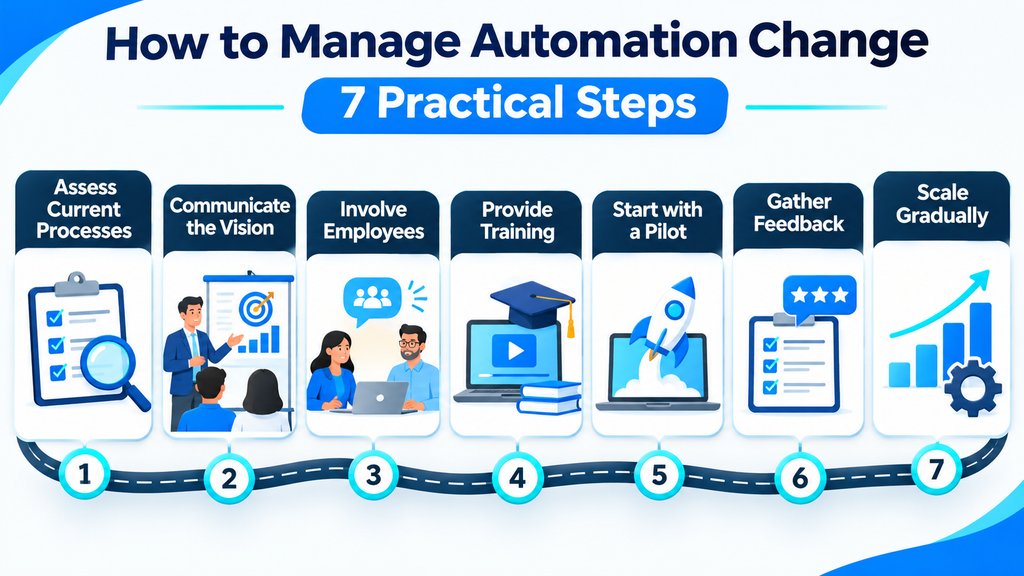
Step 1: Define What Will Change
Before introducing a tool, identify which tasks and roles it will affect.
Ask:
- Which manual tasks will become automated?
- What will employees still need to do?
- Who will check the results?
- What problems should the tool solve?
For example, an accounting team may use software to collect invoice details automatically. Employees might then spend more time checking exceptions instead of typing information.
Write down the new workflow in simple terms. This gives everyone a clear starting point.
Step 2: Explain the Change Early
Do not wait until the new tool is ready to tell employees about it.
Explain what is changing, why the business is making the change, and when it is expected to happen.
Avoid complicated technical language.
Instead of saying, “We are deploying an automated workflow system,” explain:
“We are introducing a tool that can move customer information between our systems. This should reduce repeated typing. We will show everyone how it works before using it for daily tasks.”
Also explain what is still uncertain. If automation could affect job duties, do not hide that information.
Step 3: Involve Employees in the Process
Employees often know the daily workflow better than the people choosing new software.
Ask them where work slows down, what causes errors, and which tasks take too much time.
You can collect feedback through short meetings, surveys, or team discussions.
For example, a sales employee might explain that customer information is often missing from incoming forms.
That feedback can help the company fix its process before automating it.
The goal is to build automation around real work, not force employees to follow a poorly designed process.
Step 4: Start With a Small Pilot
A pilot is a small test before a company introduces a tool to everyone.
Choose one team or one simple task.
For example, test automatic appointment reminders with a small group before using them across the company.
During the pilot:
- Show employees how the process works.
- Explain how to check automated results.
- Record errors and unexpected problems.
- Collect feedback from the team.
- Fix issues before expanding the system.
Keep a safe backup or manual process where needed.
A small test makes it easier to spot problems without disrupting the whole business.
Step 5: Provide Practical Employee Training
Training should help employees complete real tasks, not simply learn what a tool can do.
Use short demonstrations and guided practice.
A basic training session might include:
- A five-minute introduction to the tool.
- A demonstration of one common task.
- Time for employees to try it themselves.
- Instructions for checking results.
- A short guide employees can use later.
For example, teach a support worker how to review and correct an automated ticket before asking them to use the system independently.
Allow extra practice for people who need it.
One training session may not be enough. New workflows often require follow-up help.
Step 6: Choose Team Champions and Offer Support
A team champion is an employee who learns the new system early and helps coworkers use it.
Champions can answer simple questions, share tips, and report problems.
Managers should also use the new process where it applies to their work. This shows employees that the change matters across the team.
Make support easy to find. You might create:
- A shared help channel.
- A short troubleshooting guide.
- Weekly question sessions during rollout.
- A clear contact for technical issues.
Employees should know what to do when automation makes a mistake or stops working.
Step 7: Measure Adoption and Improve the Process
Launching automation is not the final step.
Managers need to find out whether employees are using it correctly and whether it makes work better.
Check which tasks are being completed through the new system. Ask employees what is working and what still causes problems.
For example, employees may open a new tool regularly but continue copying data by hand because an important feature is missing.
That is a sign that the workflow needs improvement.
Use feedback, training results, and task performance to make useful changes.
Successful adoption means employees can use automation to complete their work well—not simply that they have access to new software.
Example: Employee Adoption During Cloud Automation
Imagine a small retail business that wants to reduce manual order updates.
Employees currently copy order details from an online store into a separate system.
The company introduces cloud automation to move order information between both systems.
Here is how the manager could handle the change.
| Stage | Practical action |
|---|---|
| Planning | Identify which order details can move automatically |
| Communication | Explain the new workflow to employees |
| Employee input | Ask staff about missing or incorrect order information |
| Pilot | Test the workflow with a limited group of orders |
| Training | Teach staff how to review orders and fix exceptions |
| Support | Assign a trained team member to answer questions |
| Review | Compare errors and processing time before and after rollout |
This is an illustrative example, not a reported business case.
The new system may reduce repeated typing. However, employees still need to check failed transfers, handle unusual orders, and protect customer data.
The company should expand the workflow only after testing its reliability.
How Long Does Automation Adoption Take?
There is no fixed timeline for every business.
The time needed depends on the number of employees, the complexity of the tool, and how much daily work will change.
For a small, low-risk workflow, a manager could use this sample four-week plan:
| Week | Main activity |
|---|---|
| Week 1 | Explain the change and collect employee concerns |
| Week 2 | Train a small group and test the workflow |
| Week 3 | Fix problems and expand training |
| Week 4 | Review employee use, errors, and feedback |
This is a planning example, not a guaranteed schedule. Larger or higher-risk changes may require more time for testing, security checks, and training.
How to Measure Employee Automation Adoption
Managers should measure both tool usage and the quality of work.
A system that employees use often is not necessarily helping the business.
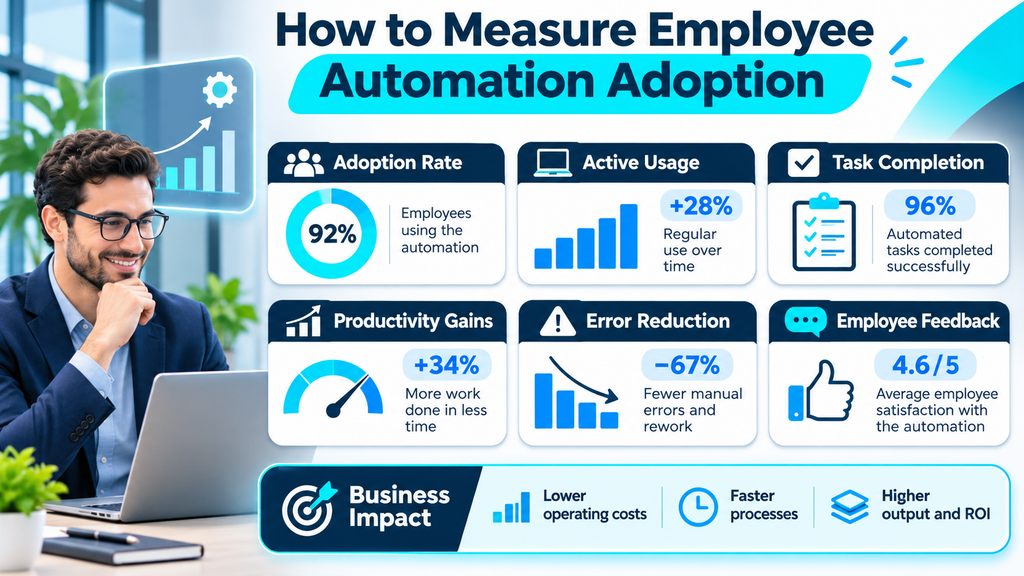
Here are four useful measures.
| Metric | What it tells you |
|---|---|
| Training completion | How many employees completed the required training |
| Active adoption | How many eligible employees are using the tool for their assigned work |
| Task accuracy | Whether errors and rework are improving |
| Employee feedback | Whether the tool is useful and easy to operate |
You can also compare how long a task takes before and after automation.
For example, if employees finish a task faster but spend extra time correcting errors, the business may not be gaining much value.
Review these measures regularly, using fair and appropriate employee data practices. Focus on improving workflows rather than monitoring every individual action.
Common Automation Change Management Mistakes
Even a useful automation tool can create problems when the rollout is rushed.
Here are five mistakes to avoid.
1. Introducing automation without explaining it
Employees may feel uncertain when they do not know what is changing. Explain the purpose and expected impact early.
2. Ignoring employee concerns
Concerns about job changes, skills, and workload deserve serious answers. Listen before assuming an employee is simply resisting progress.
3. Providing only one training session
People learn at different speeds. Offer practice, written instructions, and follow-up support.
4. Automating a broken process
Software may repeat existing mistakes faster. Review and improve the workflow before automating it.
5. Measuring only tool usage
Opening a tool does not prove that it helps. Measure accuracy, task outcomes, and employee experience too.
Avoiding these mistakes can make the transition easier for employees and managers.
Frequently Asked Questions
What is the main goal of automation change management?
The main goal is to help employees understand, accept, and use new automation tools effectively while reducing unnecessary disruption to daily work.
How can managers reduce employee resistance to automation?
Managers can reduce resistance by explaining changes honestly, listening to employee concerns, offering practical training, and involving workers in testing new processes.
What is the difference between automation and change management?
Automation uses technology to perform tasks or move information with less manual effort. Change management helps people and teams adjust to those new ways of working.
Final Thoughts
Automation change management is about making technology work for people.
Businesses should explain changes clearly, listen to employees, test new tools carefully, and provide useful training.
Start with one manageable process. Give employees time to learn, check the results, and improve the workflow based on feedback.
When employees understand the change and have the support they need, automation has a better chance of delivering lasting value.